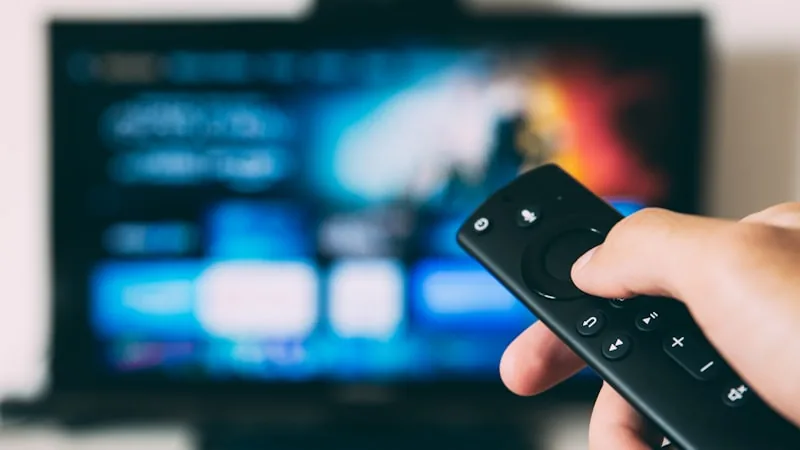
Most Smart TVs released in the last several years can run an IPTV player app directly, without any extra hardware. Here's what setup actually looks like in practice.
Step 1: Confirm Your Subscription
Choose a plan length and message us on WhatsApp to confirm payment. We'll activate your account and send your login details along with the exact app we recommend for your TV brand.
Step 2: Install a Player App
Samsung, LG, Sony, and Android TV sets all support installing a third-party IPTV player app from their respective app stores. Search for the app name we send you, install it like any other app, and open it once installed.
If Your TV Doesn't Support App Installs
Older Smart TVs sometimes lock down their app store to a curated list. If that's the case, a low-cost Firestick or Android TV box plugged into an HDMI port gets you the exact same result — see our Firestick setup guide for that path.
Step 3: Sign In
Enter the login details we sent you, and your full channel list and on-demand library load automatically. There's no separate configuration screen to fill in — the app pulls everything from your account.
Getting the Best Picture Quality
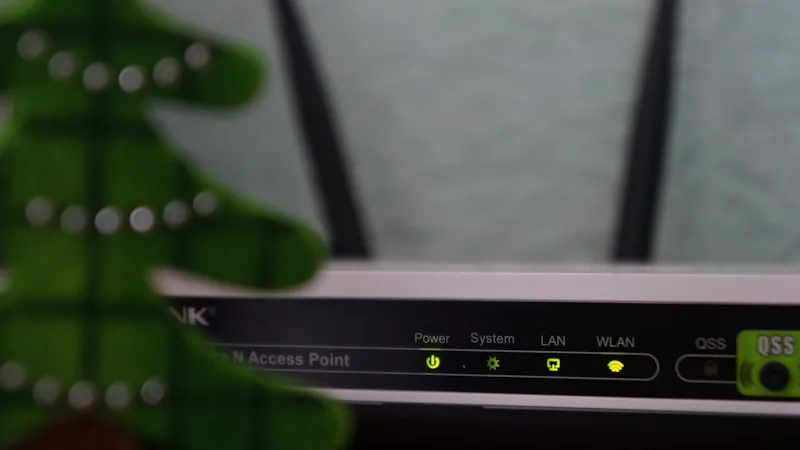
For the smoothest playback on a 4K TV, a wired Ethernet connection to your router is more reliable than Wi-Fi, especially if the TV is more than a room or two away from the router. If Wi-Fi is your only option, keeping other heavy internet use (large downloads, other 4K streams) to a minimum while watching helps avoid buffering.
If anything doesn't look right the first time you open the app, message support on WhatsApp with your TV's brand and model — most Smart TV setup issues are resolved in the same conversation.
Ready to try CloudVision for yourself?
Start Your Free Trial